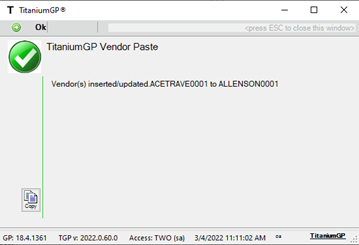
An easy to follow guide on using TitaniumGP to Copy/Paste in Dynamics GP: #
- Open the Dynamics GP card you want to paste information into.
- Click the Additional drop-down menu in the ribbon and click TGP Paste or use the keyboard shortcut Ctrl+T.
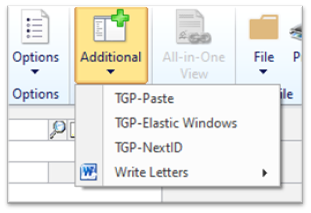
- If there is nothing in your computer’s clipboard a window will option with the option to generate a template.
(Note: You can also find templates in the Copy/Paste section of the TitaniumGP Control Desk)
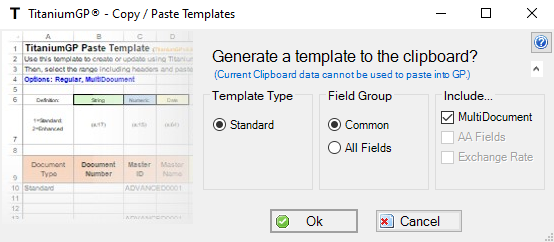
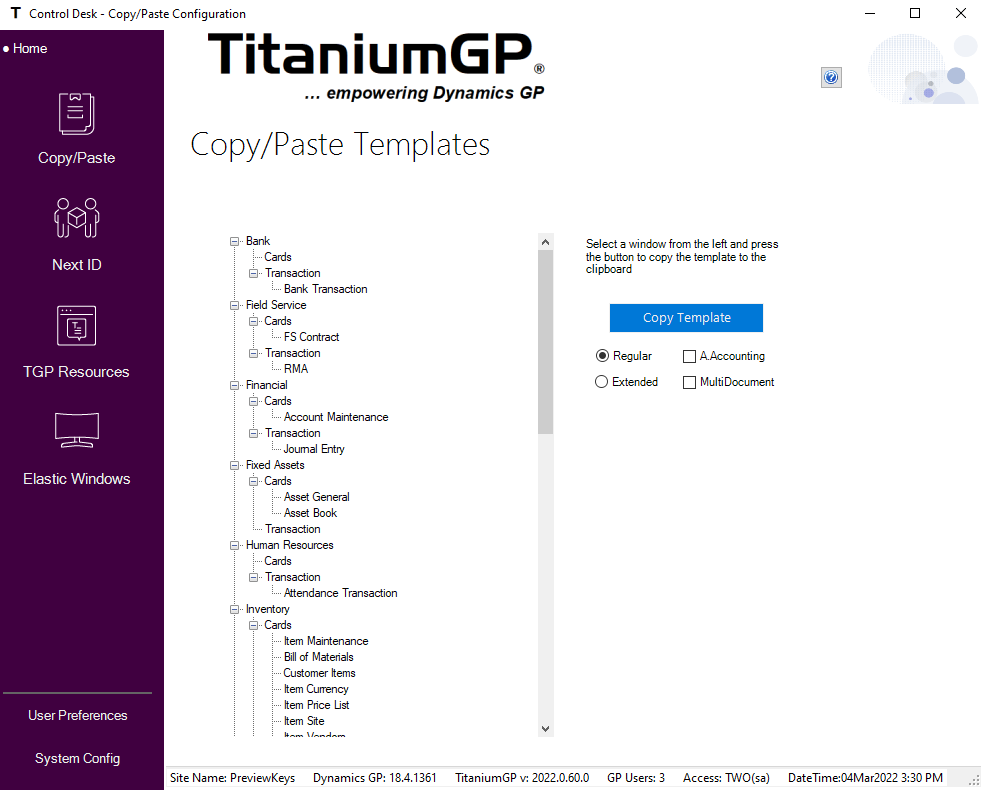
- If there is nothing in your computer’s clipboard, a window will open with the option to generate a template.
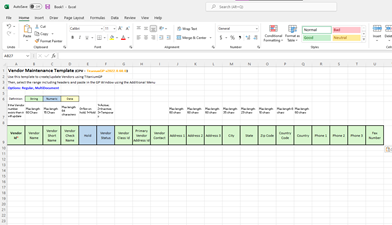
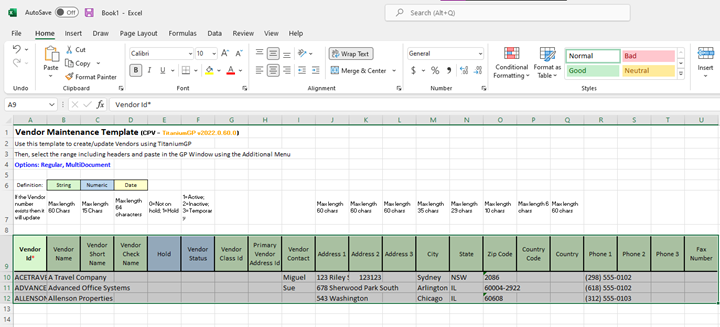
- Using the pasted template, fill in the information as is necessary (Note: Headers in bold and with an asterisk are required fields).
- Once you have inputted the information, select the entire table (including the headers), and copy it into your clipboard.
(Note: With one of the cells in the table selected you can click Ctrl+A to select the entire table)
- Return to the GP card and once again select the Additional drop-down menu and click TGP Paste, or simply click Ctrl+T.
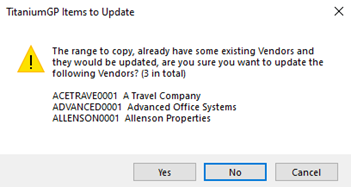
(Note: If the information already exists, TitaniumGP® will warn you and ask if you wish to update it)
- Your information will now be pasted into the correct fields.